
 Getting started
Finding your way
The town, the top bar, the sidebar and the right edge, and what each one opens.
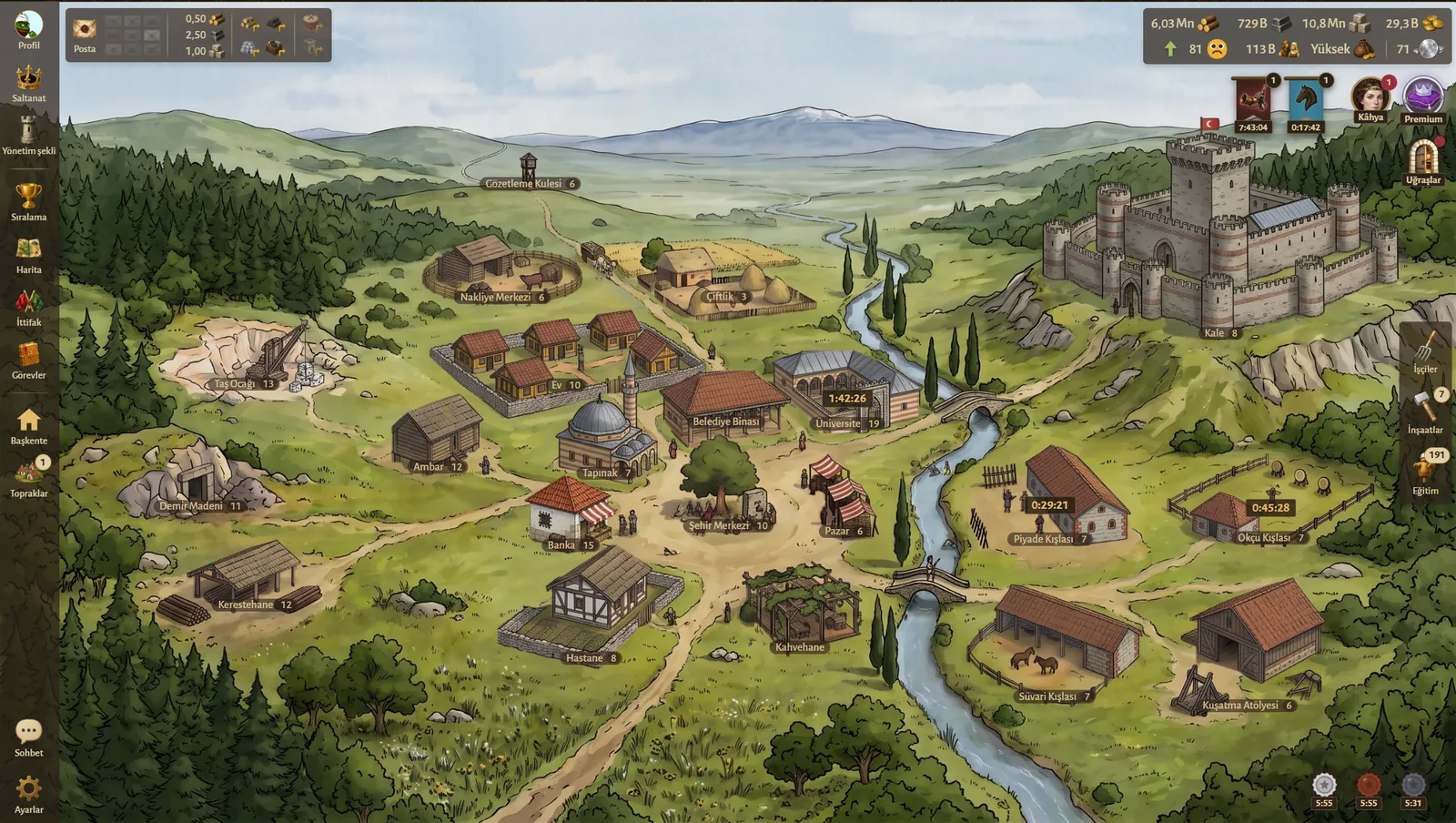
Point at a building or a numbered part of the screen, or tap it, to see what it does.
The town
The town of the province you are looking at fills the screen. Each building stands on its own plot, with its name and level at its foot. Building labels in the settings hides these names. Click a building to open its window:
| Building | Opens |
|---|---|
| Town hall | Buildings, to build and upgrade |
| Lumbermill, iron mine, stone quarry | Workers, to seat workers in the mills |
| Houses, farm | Population: how many people the houses hold and the farms feed |
| Warehouse | Production: what the province holds and makes |
| Depot Station | Bringing goods in from your other provinces, and sending gold |
| Town center | Feasts |
| Temple | Blessings in your capital, Happiness in your other provinces |
| University | Research |
| Barracks, archery range, stable, workshop | Training for that building's troops |
| Castle | Command center: your army, attacks, espionage and the battle simulator |
| Watchtower | Missions: your armies and spies on the move |
| Market | Selling and buying goods |
| Bank | Deposits and loans |
| Hospital | Your wounded |
| Tavern | Decisions, dice and coffee reading, in your capital |
A building that is being built shows the time it has left. So does the university while research runs, and a training building while it trains. A gold plate over the temple or the tavern means something waits for you there: a blessing to pick, or a decision to make.
The top bar
On the left of the top bar is your Mail, with the count of unread letters and reports. Next to it, an envelope for each kind of mail opens the mail on that kind. See Mail and chat.
Once your capital has a market, the cheapest market price of wood, iron and stone shows beside them, in gold per unit. Click a price to open the market.
Once you rule more than one province, two more groups of buttons follow. Each works on the province you are looking at:
- Bring all wood here, Bring all iron here, Bring all stone here and Bring all resources here bring goods in from your other provinces, as the depot does. See The depot.
- Gather field armies here and Gather garrisons here move the troops of your other provinces to this one.
On the right are your figures. Each opens its window, and its tooltip shows how fast it grows:
| Figure | Opens |
|---|---|
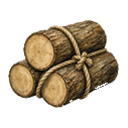 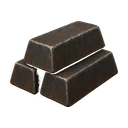 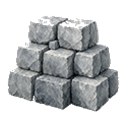 Wood, iron, stone | Production |
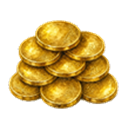 Gold | Treasury: your gold coming in and going out |
 Population | Population |
 Happiness | Happiness: what raises and lowers it each day |
 Tax | Tax |
 Aspers | Premium |
Wood, iron, stone, population, happiness and tax belong to the province you are looking at. Gold belongs to your whole empire. A figure that is full, like a full warehouse, is marked, and gold below zero turns red.
Under the figures, plates show what is on its way, each with a count and the time to the next arrival:
 Incoming attacks on you.
 Wars: your alliance's wars. See Diplomacy and war.
 Missions: your own armies and spies.
 Alliance missions: your alliance army's marches. See Holdings and the alliance army.
Beside the plates stand three rounds:
 Steward: while Premium runs, lists everything that needs you, the most urgent first. Its number counts what is in trouble, in red, or else what is coming or ready.
 Premium: your aspers and your pass. Point at it to see the time your pass has left.
 Pastimes: the daily check-in, the Temple's blessings, the Tavern's decisions, dice and coffee reading, the Travels, okey and Iron Ranks. A red dot means one is waiting for you.
The sidebar
The sidebar runs down the left edge. At its top is your Profile. Under it are the windows of the whole game:
| Button | Opens |
|---|---|
 Empire | Your empire's statistics, submitting, and moving your capital |
 Form of Rule | How your empire is run. See Form of Rule |
 Rankings | The player and alliance lists. See Rankings |
 Map | The world map. See The map |
| Alliance | Your alliance, or the alliances you can join. See Your alliance |
 Quests | The starting guide, then your quests and today's tasks. See Quests and daily tasks |
Once you rule more than one province, To Capital appears under them, a house that shows your capital. The Lands picker appears under it once you have a second province or a vassal land. The picker shows your capital as a house and your other provinces by number: pick one to see its town. A vassal land's number opens its window; see Vassal lands. While your alliance holds any holdings, Holdings stands under the lands.
The Empire window
Empire opens on Statistics, which has five pages:
- Overview: your provinces and vassal lands against how many you may hold, your land and workers, your net worth, honor, rank, attack and defense points, your beginner protection, and your gold, people and army with how fast each grows.
- Economy: each province's people, housing, food, happiness, tax and workers, then its wood, iron and stone, its storage and its mills.
- Military: each province's army, garrison, seats and wall, every unit type in the field, the garrison, the reserve and training, the orders in training, and your armies on the move.
- Buildings: the levels under construction, then every building's level in each province.
- Research: the research under way, then every research line's level.
Its other tabs are Submitting, see Submitting, and Relocate, see Moving your capital.
At the foot of the sidebar are Chat and Settings. Settings opens a menu with the game's language, All settings and Log out. See Chat.
The right edge
On the right edge are the windows that cover all your provinces at once:
 Workers opens Workforce, every province's mills in one table.
 Constructions shows every build under way. It shows while something is being built.
 Training shows every training order and the troops waiting in reserve. It shows while there are any.
The number on a button counts what it holds.
Edicts
Once you hold an edict,  Edicts stands at the bottom right of the screen, with the count you hold. While edicts run, each one stands there instead, with its time left. Click either to open the Edicts window. See Edicts.
Windows
Windows open over the town, and several can be open at once. The one you clicked last comes to the front. Drag a window by its title bar. A window that shows one province has arrows on its bar to step through your provinces. Escape closes the window on top.
Under the game
Under the game are the game's version, Support, the Wiki link to this guide, the Worlds button and the server time. Worlds lets you enter another world you play, or join a new one. Support opens a chat with the team: pick what it is about, a bug, an idea, your account or something else, and write. The team's replies come in the same chat, and Support turns gold with a count while one waits unread. Mark as solved closes a chat, and writing in it again opens it again. At night a moon and Night show before the time, and their tooltip says when the night ends. Click the time to open Server: the world's number and speed, the world time beside your own, and the world's time zone.